Tutorials
End-to-end workflows for common use cases. Each tutorial takes you from raw data to a finished, export-ready figure.
Create a publication-ready two-panel figure for an academic paper using the
scientific preset, GridSpec layout, and panel labels.
Build a weekly operations chart with Korean labels using the report-kr
preset and bar+line combo.
Set up a Jupyter workflow with the dark preset, retina display, and
save_and_show for interactive exploration.
Paper Figure (scientific preset)
A typical journal submission requires a multi-panel figure at specific dimensions with consistent typography. Here’s a complete workflow:
import dartwork_mpl as dm
import numpy as np

# 1. Apply style — scientific preset for journal figures
dm.style.use("scientific")

# 2. Two-column figure at 17 cm with a cinema (1/2) aspect ratio
fig = plt.figure(figsize=dm.figsize(dm.col2, "cinema"))
gs = fig.add_gridspec(1, 2, wspace=0.35)
ax1 = fig.add_subplot(gs[0])
ax2 = fig.add_subplot(gs[1])

# 3. Panel (a): Time series with error band
t = np.linspace(0, 5, 200)
signal = np.exp(-0.3 * t) * np.sin(2 * np.pi * t)
noise = 0.1 * np.random.randn(200)
ax1.plot(t, signal, color="dc.teal3", lw=dm.lw(1))
ax1.fill_between(t, signal - 0.15, signal + 0.15,
                 color="dc.teal1", alpha=0.4)
ax1.set_xlabel("Time [s]")
ax1.set_ylabel("Amplitude [V]")

# 4. Panel (b): Frequency spectrum
freq = np.fft.rfftfreq(200, d=0.025)
spectrum = np.abs(np.fft.rfft(signal + noise))
ax2.semilogy(freq[:50], spectrum[:50], color="dc.red2", lw=dm.lw(1))
ax2.set_xlabel("Frequency [Hz]")
ax2.set_ylabel("Magnitude")

# 5. Add panel labels and optimize layout
dm.label_axes([ax1, ax2])
dm.simple_layout(fig, gs=gs)

# 6. Export for submission
dm.save_formats(fig, "fig_signal_analysis",
                formats=("pdf", "svg", "png"), validate=True)
Key points:
dm.col2is the academic two-column width (17 cm) —dm.col1is 9 cmaspect="cinema"(= 1/2) gives the wide aspect typical of side-by-side panelsdm.fs(0)uses the preset’s base font size;dm.lw(1)uses relative line widthdm.label_axes()adds (a), (b) labels aligned to y-axis labelsvalidate=Truecatches clipped labels before you submit
Korean Operations Report (report-kr preset)
A weekly operations chart with Korean labels — bar series for a primary count, line series for a secondary percentage on a twin axis:
import matplotlib.ticker as mticker
import dartwork_mpl as dm

# 1. Korean report style
dm.style.use("report-kr")

# 2. Create figure
fig, ax = plt.subplots(figsize=dm.figsize("15cm", "wide"))

# 3. Weekly data (synthetic)
weeks = ["1주차", "2주차", "3주차", "4주차", "5주차"]
throughput = [1234, 1456, 1389, 1567, 1650]   # primary: 처리량 (건)
utilization = [82.5, 84.2, 83.1, 85.8, 86.3]  # secondary: 가동률 (%)

# 4. Bar chart for the primary series
bars = ax.bar(weeks, throughput, color="dc.teal2", width=0.6, zorder=2)
ax.set_ylabel("처리량 (건)")
ax.yaxis.set_major_formatter(mticker.StrMethodFormatter("{x:,.0f}"))

# 5. Line chart for the secondary series on a twin axis
ax2 = ax.twinx()
ax2.plot(weeks, utilization, color="dc.red2", marker="o",
         markersize=4, lw=dm.lw(1.5), zorder=3)
ax2.set_ylabel("가동률 (%)")
ax2.yaxis.set_major_formatter(mticker.PercentFormatter(decimals=1))
ax2.spines["right"].set_visible(True)

# 6. Add value labels on bars
for bar, val in zip(bars, throughput):
    ax.text(bar.get_x() + bar.get_width() / 2, bar.get_height() + 20,
            f"{val:,}", ha="center", va="bottom", fontsize=dm.fs(-1.5))

# 7. Layout and save
dm.simple_layout(fig)
dm.save_formats(fig, "korean_report", formats=("png", "pdf"))
Key points:
report-krpreset loads Paperlogy/Pretendard for Korean textax2.spines["right"].set_visible(True)– show right spine for dual-axis chartsPercentFormatter(decimals=1)– clean percentage displaysimple_layoutmeasures the right-hand spine label and snaps the figure to the union extent so the second y-axis isn’t clipped
Dark Mode Notebook
Set up a Jupyter workflow optimized for dark themes:
# Cell 1: Setup
%config InlineBackend.figure_format = 'retina'

import dartwork_mpl as dm
import numpy as np

dm.style.use("dark")
# Cell 2: Create and preview
fig, ax = plt.subplots(figsize=dm.figsize("14cm", "wide"))

x = np.linspace(0, 4 * np.pi, 300)
for i, (amp, phase) in enumerate([(1.0, 0), (0.7, 0.5), (0.4, 1.0)]):
    y = amp * np.sin(x + phase)
    ax.plot(x, y, color=f"oc.blue{3 + i*2}", lw=dm.lw(1),
            label=f"A={amp}, phase={phase:.1f}")

ax.set_xlabel("Phase [rad]")
ax.set_ylabel("Amplitude")
ax.legend()

dm.simple_layout(fig)
dm.save_and_show(fig, "waves_dark")  # save + inline preview
# Cell 3: Export light version for paper
dm.style.use("scientific")  # Switch to light style
fig2, ax2 = plt.subplots(figsize=dm.figsize("9cm", "standard"))

# Replot with same data but paper-appropriate styling
for i, (amp, phase) in enumerate([(1.0, 0), (0.7, 0.5), (0.4, 1.0)]):
    y = amp * np.sin(x + phase)
    ax2.plot(x, y, color=f"oc.blue{3 + i*2}", lw=dm.lw(1),
             label=f"A={amp}, phase={phase:.1f}")

ax2.set_xlabel("Phase [rad]")
ax2.set_ylabel("Amplitude")
ax2.legend()

dm.simple_layout(fig2)
dm.save_formats(fig2, "waves", formats=("svg", "pdf"))
Key points:
retinaformat makes inline plots crisp on HiDPI displayssave_and_show(fig, "name")saves multi-format and previews inlineSwitch styles mid-notebook to export different versions from the same data
Dark preset uses
#1e1e1ebackground with subtle gray spines
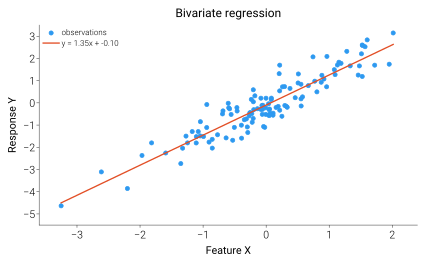
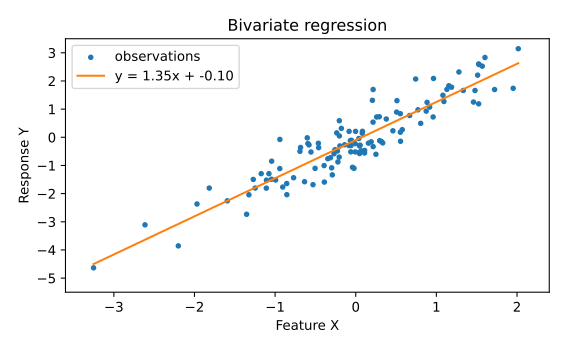
Before / after — bivariate regression
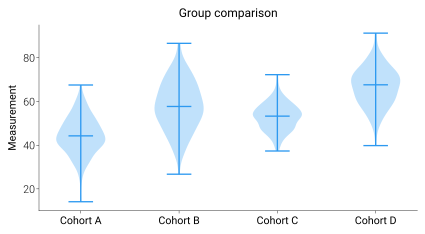
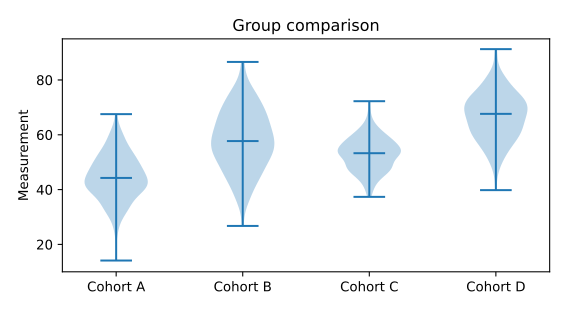
Before / after — distribution comparison
See also
Quick Start – minimal 5-minute introduction
Styles and Presets – full preset comparison
Colors and Colormaps – palette reference
Layout and Typography – margin optimization details