Layout and Typography
Layout optimization
For most figures, simple_layout(fig) is all you need — it automatically
optimizes margins so labels and titles don’t clip or overlap:
import matplotlib.pyplot as plt
import dartwork_mpl as dm
import numpy as np

dm.style.use("scientific")

fig, ax = plt.subplots(figsize=dm.figsize("15cm", "wide"))
ax.plot(np.linspace(0, 10, 100), np.sin(np.linspace(0, 10, 100)), color="dc.teal3")
ax.set_xlabel("Time [s]")
ax.set_ylabel("Response")

dm.simple_layout(fig)  # replaces fig.tight_layout — flush to figure edges
Try it — drag the sliders to see how figure dimensions map onto an A4 page:
Multi-panel figures
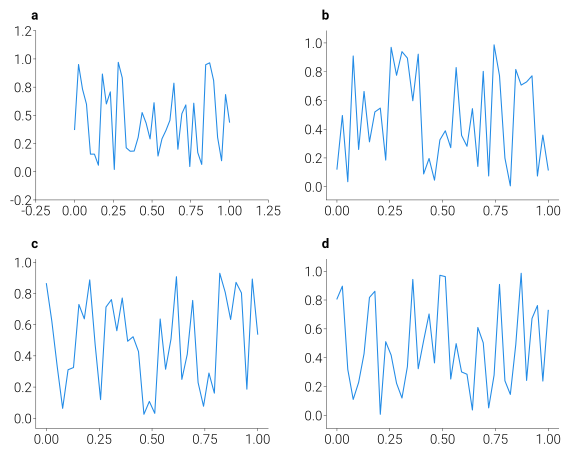
For multi-panel layouts, use GridSpec and pass it to simple_layout:
fig = plt.figure(figsize=dm.figsize("15cm", "portrait"))
gs = fig.add_gridspec(2, 2, hspace=0.35, wspace=0.25)
axes = [fig.add_subplot(gs[i, j]) for i in range(2) for j in range(2)]

for ax in axes:
    ax.plot(np.linspace(0, 1, 40), np.random.rand(40), color="dc.teal3", lw=0.8)

dm.label_axes(axes)                    # adds (a), (b), (c), (d) panel labels
dm.set_decimal(axes[0], xn=2, yn=1)    # format tick labels to fixed decimals

# Pass gs so simple_layout respects your GridSpec spacing
dm.simple_layout(fig, gs=gs)
Tip: You generally don’t need to set explicit
left,right,top,bottomvalues on GridSpec —simple_layoutfinds optimal margins automatically. Only add manual margins when you need fine positional control (e.g., making room for a colorbar or external legend).
Adding a buffer with margin
The default simple_layout(fig) snaps axes content (labels, ticks,
title, legend) flush against the figure edges. For a uniform inset
buffer, pass a margin:
fig, ax = plt.subplots(figsize=dm.figsize("9cm", "standard"))
ax.plot(np.linspace(0, 10, 100), np.sin(np.linspace(0, 10, 100)))
ax.set_ylabel("Very Long Label That Might\nOverflow the Figure Bounds")
ax.set_title("Complex Multi-Line Title", fontsize=dm.fs(2))

dm.simple_layout(fig, margin="2%")        # uniform 2% buffer
dm.simple_layout(fig, margin=dm.mm(2))    # uniform 2 mm buffer
dm.simple_layout(fig, ml=dm.cm(1), mr="3%")  # per-side, mixed units
margin (and the per-side ml/mr/mt/mb overrides) accept any
of:
:class:
Length(dm.cm(0.5),dm.mm(5),dm.inch(0.1),dm.pt(12))unit string (
"5mm","0.5cm","0.1in","24pt")percentage string (
"5%"= 5 % of the figure dimension)bare number (figure-fraction, so
0.05= 5 %)
How it works:
Draws the figure once to populate text metrics.
Walks every visible artist on each axes (texts, title, axis labels, tick labels in view, axis offset text, legend) and computes the content-extent overhang relative to each axes’ plot area.
Sets GridSpec edges arithmetically so the union of all axes content sits at exactly the requested distance from each figure edge.
Re-measures and re-applies until consecutive iterations agree to within 0.5 px (typically 2 iterations; up to 8 on AutoLocator fixed-points like long log-scale ranges).
No optimizer is involved — the result is fully deterministic.
Data-range margins on individual axes
dm.simple_layout controls margins between the axes content and
the figure edge. For breathing room between the plotted data
and the axes spines, use matplotlib’s built-in
ax.margins(...) — dartwork-mpl doesn’t wrap it, since it’s already a
one-liner:
ax.margins(x=0.1, y=0.05)   # 10 % x-padding, 5 % y-padding
ax.margins(0.05)            # same value on both axes
Useful for:
Preventing data from touching axis spines
Creating visual breathing room around markers
Ensuring scatter points and bar tops aren’t clipped at boundaries
Which call to use?
Scenario |
Call |
|---|---|
Default — most figures |
|
Need a buffer between content and edge |
|
Per-side asymmetric margins |
|
Multi-panel via GridSpec |
|
Debugging layout convergence |
|
The historical dm.auto_layout(fig) was removed in 0.5.4 and now
raises a migration-hint AttributeError. Use simple_layout directly.
simple_layout vs tight_layout
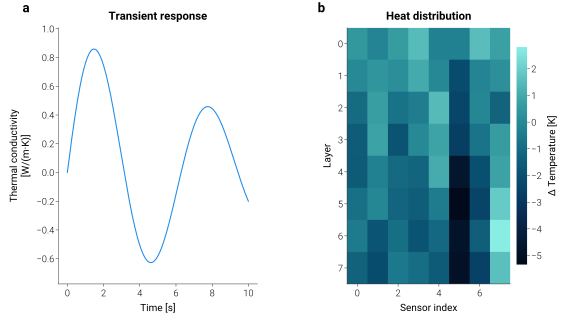
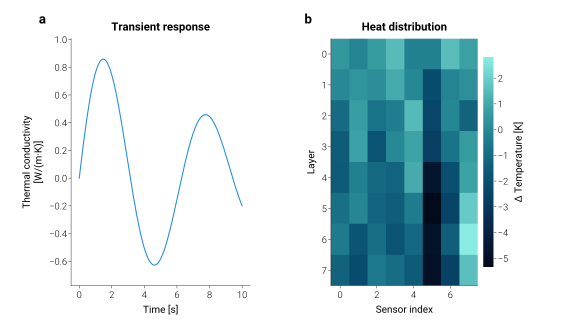
Simple layouts look fine with either method. The real difference shows up when figures get more complex — multi-panel grids, long axis labels, colorbars, and titles all competing for space.
Interactive visualizer — see how dartwork-mpl calculates margins dynamically:
Below is the same figure — a two-panel layout with a multi-line y-label and a colorbar — rendered with each approach. The figure background is tinted and edged so you can see how each method negotiates the gap between the axes content and the figure rectangle itself. Click the tabs to toggle the full-width rendering — that’s the only way to spot the lopsided whitespace and the shifted colorbar without overlaying the two side-by-side.
What’s different?
tight_layout() calculates padding heuristically — it tries to prevent
overlap but doesn’t guarantee uniform margins or optimal use of space. When
panels have different label lengths (e.g., a multi-line ylabel vs. a
short one), or when a colorbar shifts the effective axes width, the
heuristic can produce lopsided spacing or wasted whitespace.
simple_layout() measures every visible artist on every axes and
arithmetically places the GridSpec so the content union lands at the
requested margin from each figure edge. This means:
Deterministic — the same figure produces the same GridSpec (no optimizer, no scipy)
Content-complete — sees titles, axis labels, view-limited tick labels, ScalarFormatter offset text, legends — everything that appears on the canvas
GridSpec-native — pass
gs=gsand it respects yourhspace/wspacewhile only adjusting outer marginsUnit-flexible —
marginacceptsLength, unit strings ("5mm"), percentages ("5%"), or figure-fractions
Key layout functions — the full layout API at a glance (for the
simple_layout margin / GridSpec options specifically, see
Which call to use? above):
Function |
What it solves |
|---|---|
|
Places content at requested margin — replaces |
|
Adds (a), (b), (c) labels with auto-positioning for ylabels |
|
Adds compact value labels with vertical/horizontal fallback |
|
Adds spine-tight narrative notes in the least obstructed corner |
|
Attaches text tightly to a horizontal reference-line endpoint |
|
Places legends around data/text obstacles and can raise ncol |
|
Wraps an overlong axis label to two word-boundary lines |
|
Creates |
|
Fixes tick decimal places for publication-ready labels |
|
Creates point-based offsets for precise text positioning |
|
Merges multiple axes bounding boxes into one |
Annotation & Formatting
dartwork-mpl includes several helpers that automate tedious formatting tasks.
Auto-aligned panel labels (label_axes)
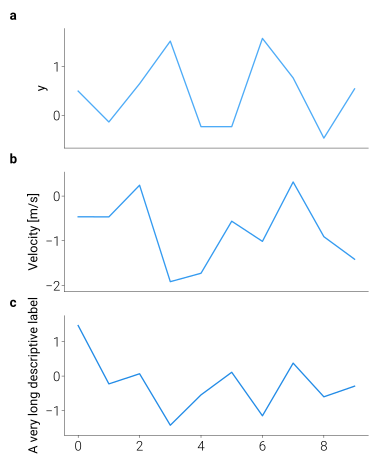
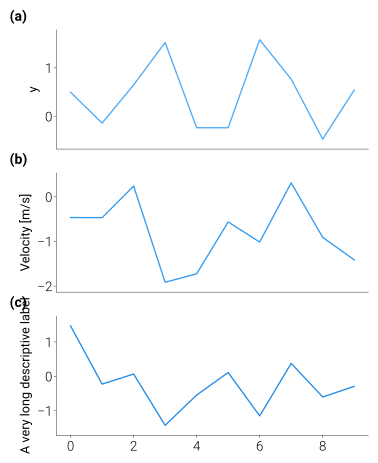
Manually positioning (a), (b), (c) labels across panels with different y-axis label lengths often results in misaligned text. dm.label_axes(axes) calculates the bounding boxes of your y-labels and perfectly aligns the panel labels to the leftmost edge.
Interactive visualizer — drag the slider to compare:
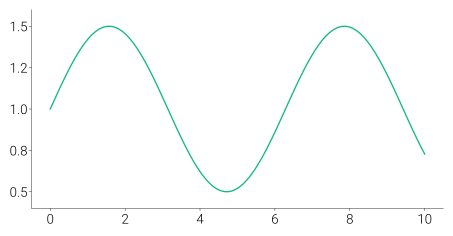
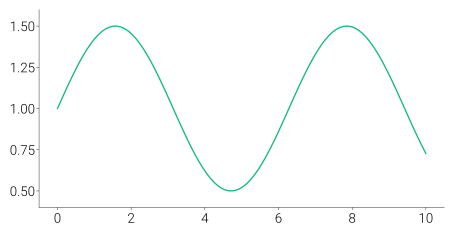
Consistent tick decimals (set_decimal)
Raw matplotlib ticks can sometimes mix integers and floats (e.g. 0.5, 1, 1.5), which looks unprofessional. dm.set_decimal() forces consistent decimal places for publication-ready formatting.
Compact value and reference labels
dm.annotate_value(ax, x, y, text) uses a small point offset above the data
point by default, tries below when vertical placement collides, and falls back
to left/right placement when the label would cross the axes spine. Explicit
side="left" / side="right" also works with arrowprops, keeping the arrow
straight along one axis. dm.annotate_corner(ax, text) places narrative notes
just inside a corner and can move to a less obstructed corner after rendering.
dm.label_hline(ax, y, text) keeps horizontal-reference labels close to the
visible line endpoint with a 2 pt default gap.
dm.annotate_value(ax, x[-1], y[-1], f"{y[-1]:.1f}")
dm.annotate_corner(ax, "Screened subset", loc="upper left")
ax.axhline(baseline, lw=0.5, ls=":")
dm.label_hline(ax, baseline, "Reference", x="auto")
dm.place_legend(ax)
dm.wrap_axis_label(ax, axis="y")
Bidirectional arrow axes (arrow_axis)
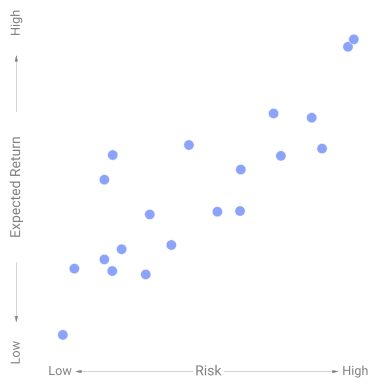
For conceptual or qualitative plots (like “Risk vs Return”), drawing bidirectional label axes manually is surprisingly difficult in matplotlib. dm.arrow_axis() handles the positioning, offsets, and arrows automatically.
Typography
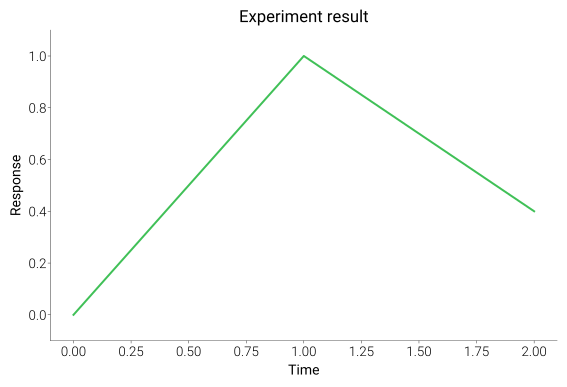
import dartwork_mpl as dm

dm.style.use("scientific-kr")  # English/Korean fonts set together

fig, ax = plt.subplots(figsize=dm.figsize("9cm", "standard"))
ax.plot([0, 1, 2], [0, 1, 0.4], color="dc.green2", lw=dm.lw(0.5))
ax.set_title("Experiment result", fontsize=dm.fs(2), fontweight=dm.fw(1))
ax.set_xlabel("Time")
ax.set_ylabel("Response")
dm.simple_layout(fig)

# Preview bundled fonts
dm.plot_fonts(ncols=4, font_size=12)
Scaling helpers:
Helper |
What it does |
|---|---|
|
Font size = base size + |
|
Weight = base weight + |
|
Line width relative to |
See Font Families for the full font catalog and Font Utilities for detailed usage.
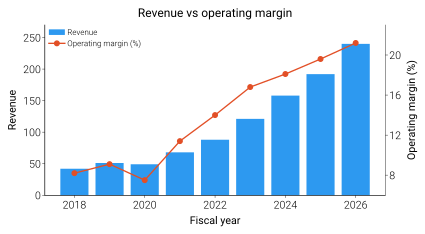
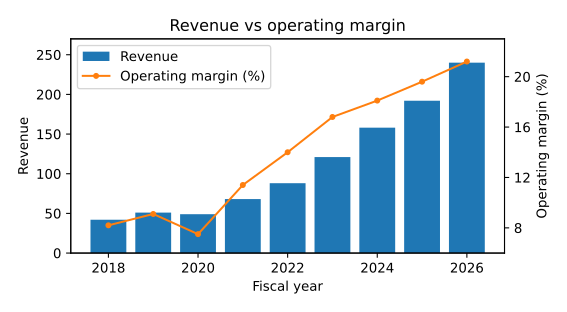
Before / after — twinx bar + line dashboard
A twinx chart is where margin discipline matters most: the left bar
axis, the right line axis, both ylabels, and the legend all compete
for breathing room. Drag the divider to compare vanilla
tight_layout() against dm.simple_layout(fig, margin="2mm") on the
exact same code.
See also
Next → Save and Validation — multi-format export and automatic visual quality checks
API › Layout Utilities for all layout helper functions and arguments
Colors and Colormaps for named colors and gradients